Your site takes six seconds to load, and half your visitors are already gone before the homepage finishes rendering. If you’re running WordPress on shared hosting, that’s not bad luck, it’s the default. The good news: you can speed up WordPress on shared hosting without upgrading your hosting plan, and this guide walks through exactly how to do WordPress performance optimization, in the order that gets you the biggest wins first.
Key Takeaways
- WordPress speed optimization on shared hosting comes down to five levers: caching, image compression, plugin/theme cleanup, a CDN, and database cleanup.
- Installing a caching plugin for WordPress is the single highest-impact step — it alone can cut load times noticeably before you touch anything else.
- Most of what determines WordPress website speed optimization is within your control even on an entry-level shared plan — you don’t need to upgrade hosting first.
- Image compression and lazy loading often produce the biggest visible improvement for image-heavy blogs and affiliate sites.
- A free CDN like Cloudflare and a clean, lightweight theme both meaningfully improve WordPress website speed with minimal setup time.
- If Time to First Byte stays above 600ms after every fix in this guide, the bottleneck is the server itself, and it’s time to consider upgrading hosting.
Why Shared Hosting Makes WordPress Slow in the First Place
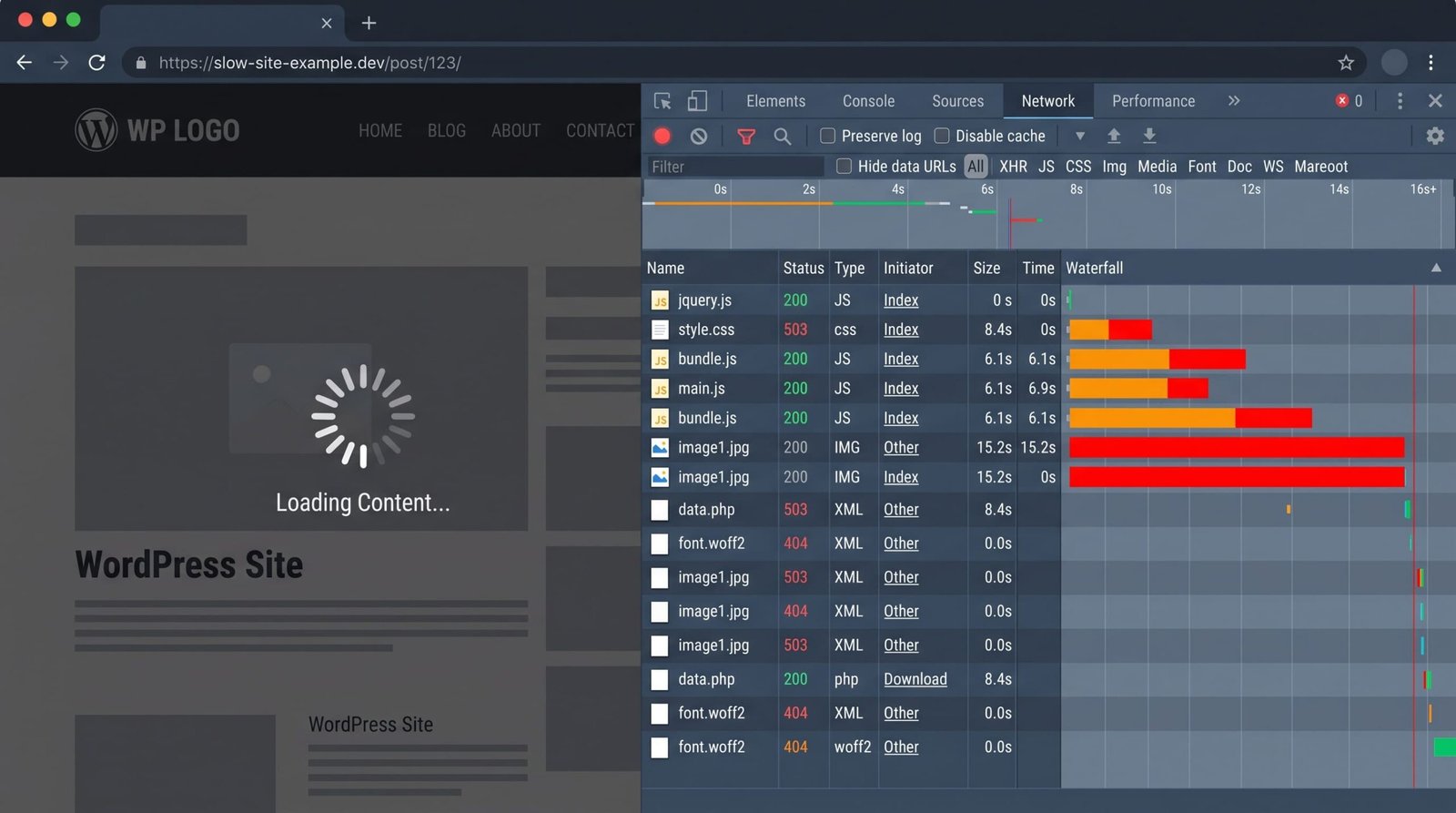
On shared hosting, your site sits on the same server as hundreds of other websites, all pulling from the same CPU, memory, and database. When one of those neighbors gets a traffic spike, your site pays for it too. That’s the trade-off you accept for a $3-a-month plan, and it’s not something a plugin can fully undo.
The server-side delay shows up as Time to First Byte, or TTFB, which is how long it takes the server to start sending your page at all. Quality hosting gets this under 200 milliseconds. Cheap shared hosting can run 800 milliseconds to 1.5 seconds before your browser even has anything to render. That gap alone can be the difference between a page that feels instant and one that feels broken.
Here’s the part that matters for you: TTFB is only one piece of the puzzle. Caching, image weight, theme bloat, and plugin overload are all things you control directly, and fixing them can get a shared-hosting site into genuinely good territory.
How to Pick a Caching Plugin That Actually Works on Shared Hosting
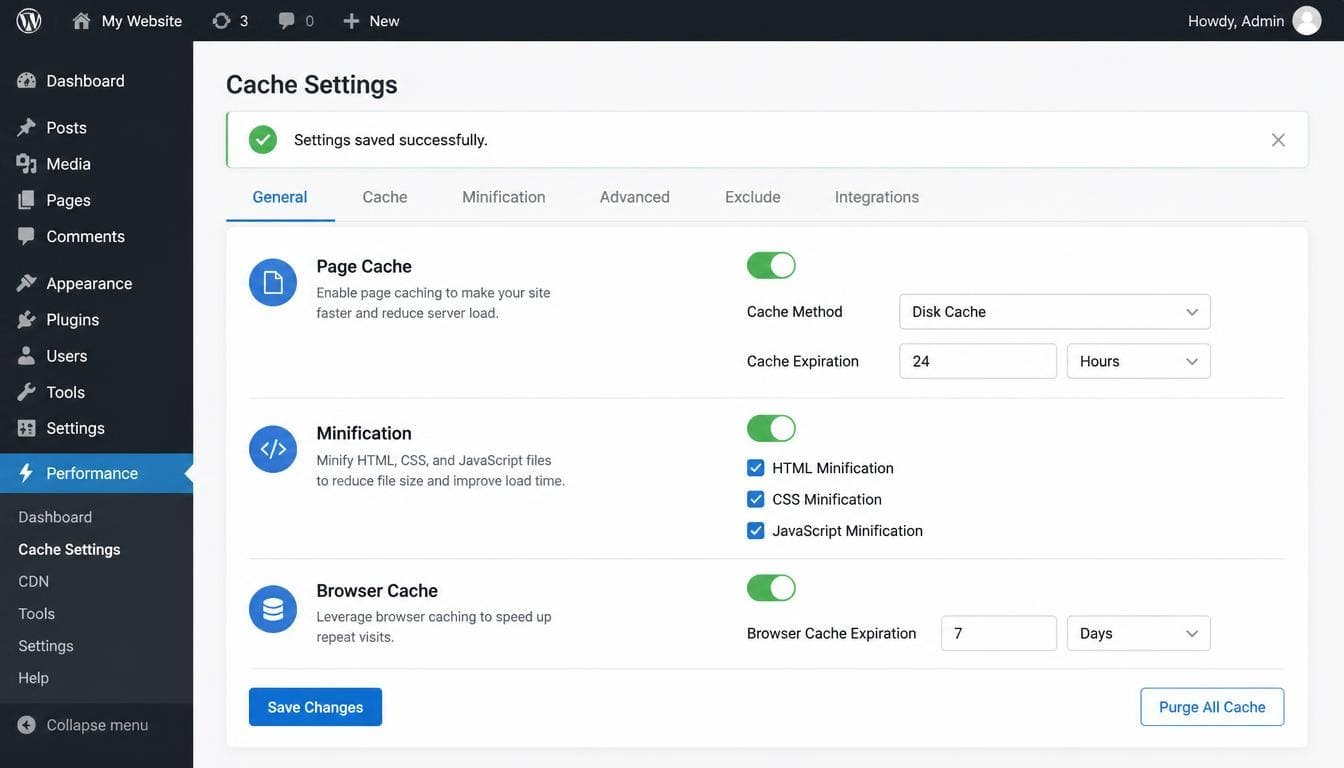
A caching plugin for WordPress stores a ready-built copy of your pages so WordPress doesn’t have to assemble them from scratch, database query by database query, every single time someone visits. On shared hosting, this is the highest-leverage plugin you’ll install. Skip it and nothing else you do will matter as much. Getting WordPress caching set up correctly is, in most cases, 80% of the work involved in WordPress speed optimization.
- LiteSpeed Cache — free, and if your host runs LiteSpeed servers, it integrates directly at the server level, not just the plugin level.
- WP Rocket — paid, but genuinely easier to configure correctly on the first try, which matters if you’re not comfortable digging through settings.
Whichever one you choose, turn on page caching first, test your site, and only then start layering in extras like minification. Adding everything at once makes it much harder to spot which setting broke your layout if something goes wrong. You can check out over review on Hostinger Review for Beginners 2026 with hostinger you will get a Cache plugin for Free
Should You Bother with Object Caching on Shared Hosting?
Object caching stores the results of repeated database queries in memory, so WordPress doesn’t hit the database for the same information over and over. It’s a real speed boost, but most shared hosting plans don’t give you access to Redis or Memcached, the tools that usually power it.
If your host doesn’t offer either, a file-based option like Docket Cache is worth installing anyway. It won’t match Redis, but it beats having no object cache at all, and it requires no server-level configuration you’d need your host’s permission for.
How to Compress and Serve Images Without Losing Quality
Images are usually the single heaviest thing on a WordPress page. One uncompressed hero photo can outweigh every line of HTML, CSS, and JavaScript on the page combined, and shared hosting has the least room to absorb that kind of bloat.
- Compress before you upload — a lossy setting around 70-80% quality cuts file size by 40-70% with no visible difference to the average visitor.
- Convert to WebP — smaller than JPEG or PNG at equivalent quality, and every plugin above handles the conversion automatically.
- Turn on lazy loading — WordPress does this by default in recent versions, but confirm it in your theme and any image-heavy plugins.
For affiliate sites and blogs carrying a large media library, this step alone often produces a bigger visible improvement than anything server-side, and it’s usually the fastest way to improve WordPress website speed without touching a single setting on your hosting account.
Which Theme and Plugins Are Actually Slowing You Down?
Every active plugin adds its own CSS, JavaScript, and often its own database queries to each page load, whether or not that plugin is doing anything useful on that particular page. A bloated page builder or an abandoned SEO plugin you forgot you installed can be quietly costing you hundreds of milliseconds. This is the part of WordPress performance optimization people skip most often, because it’s less exciting than installing a caching plugin, but it adds up just as much.
Go through your plugin list and deactivate anything you’re not actively using, then delete it rather than leaving it dormant. For your theme, a lightweight, well-coded option like GeneratePress or Astra will out-load a heavier multipurpose theme almost every time, especially on a shared server with limited resources to spare.
If you’re not sure which plugin is the culprit, disable them one at a time and re-test your load time after each one. It’s tedious, but it’s the only reliable way to find the specific plugin dragging your site down.
Do You Need a CDN if You’re Already on Shared Hosting?
Yes, and it’s one of the easiest wins on this list. A content delivery network, or CDN, stores copies of your static files, images, CSS, and JavaScript, on servers around the world, so visitors load them from a location near them instead of from your single shared server.
Cloudflare’s free plan covers this well: DNS, basic DDoS protection, and a CDN layer, plus built-in image optimization and file compression. Since your caching plugin already integrates with it, setup usually takes a few minutes and takes real load off your shared server on every single page view.
How to Clean Up Your Database Without Breaking Anything
Every revision, spam comment, and expired transient sits in your database taking up space and slowing down queries, and shared hosting typically gives you the least database horsepower of any hosting tier. A plugin like WP-Optimize or Advanced Database Cleaner can clear this out in a couple of clicks.
Before you run any cleanup tool, take a full backup. Database cleanup is safe in the vast majority of cases, but it’s not the place to skip the one step that protects you if something goes wrong.
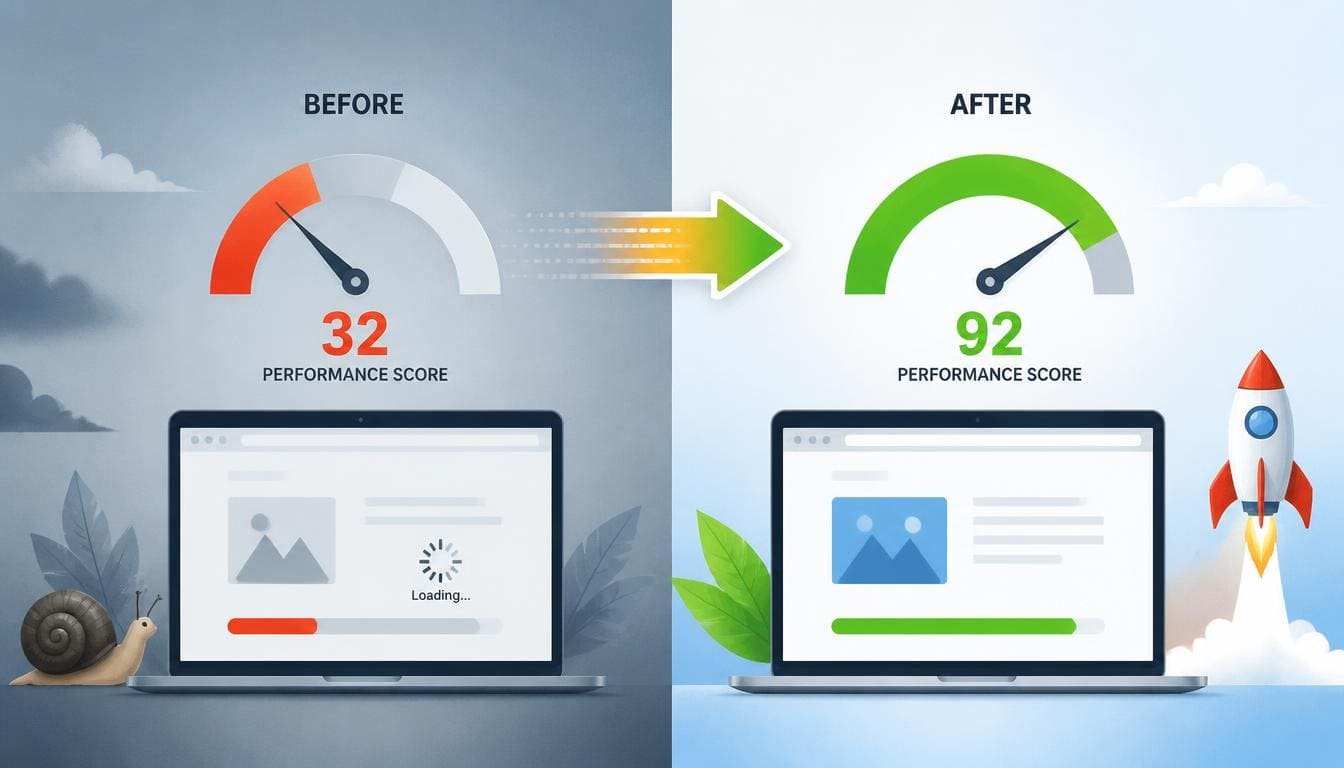
Shared Hosting Before and After Optimization
| Factor | Shared Hosting (default setup) | Shared Hosting (optimized) |
|---|---|---|
| Time to First Byte (TTFB) | 800ms – 1.5s | Under 400ms |
| Page cache | None (rendered fresh every visit) | Full-page cache via LiteSpeed Cache or WP Rocket |
| Images | Uncompressed, full resolution | Compressed WebP, lazy-loaded |
| PHP version | Often 7.4 or 8.0 | 8.1 – 8.3 |
| Object caching | Not available on most plans | File-based fallback (e.g. Docket Cache) |
| Typical Largest Contentful Paint | 3.5s+ | Under 2.5s |
When Shared Hosting Isn’t Enough Anymore
Work through every step above and check your TTFB again. If it’s still sitting above 600 milliseconds, the bottleneck has moved from your configuration to the server itself, and no plugin will fix that. At that point, a modest VPS or an entry-level managed WordPress host is the next move, not more optimization on the same shared plan.
For most new bloggers, affiliate sites, and small business owners, though, that day is further off than you’d think. The steps in this guide are enough to get a shared-hosting site loading well under three seconds, which covers the vast majority of visitors and search engines alike.
Frequently Asked Questions
Can you actually get good WordPress speed on shared hosting?
Yes, for most blogs and small business sites. Caching, image compression, and a lightweight theme can bring load times under 2.5 seconds even on entry-level shared plans. High-traffic or ecommerce sites will eventually outgrow shared hosting.
What’s the single fastest fix for a slow WordPress site on shared hosting?
Installing a caching plugin, such as LiteSpeed Cache or WP Rocket. It stores a ready-made copy of each page so the server doesn’t rebuild it from scratch on every visit, which usually cuts load time immediately.
Do I need a CDN if I’m on shared hosting?
A free CDN like Cloudflare is worth setting up regardless of hosting plan. It moves static files closer to your visitors and takes load off your server, which matters even more when server resources are shared.
Will optimizing plugins and themes really make a noticeable difference?
Yes. Every active plugin can add extra database queries and script files to each page load. Removing unused plugins and switching to a lightweight theme like GeneratePress or Astra often shaves real time off page loads without touching hosting.
How do I know when it’s time to leave shared hosting?
If your site still has a TTFB over 600ms after implementing caching, image compression, and plugin cleanup, the bottleneck is likely the server itself, and it’s a sign to consider VPS or managed WordPress hosting.
Does image compression affect image quality?
Not noticeably. Lossy compression at 60 to 90 percent quality reduces file size by 40 to 70 percent with no visible difference to most visitors, while lossless compression trims file size without any quality change at all.
The Conclusion
Shared hosting sets a ceiling, but for the vast majority of WordPress sites, that ceiling is higher than the load times most people are actually getting. Install a caching plugin for WordPress, compress your images, trim your plugin list, add a free CDN, and clean out your database. Do those five things in that order, and you’ll likely see your load time cut in half before you ever have to think about a hosting upgrade. That’s really what WordPress speed optimization on shared hosting comes down to: a handful of deliberate steps, done in the right order, rather than one big fix.